
Surface and Swapchain
In the previous chapter we created a Vulkan instance, initialized the Vulkan driver(s) on our machine, chose one of our physical devices and created a Vulkan device. Then we tried out how the Validation layers can help catch incorrect API usage.
The next step is to create a window and interface Vulkan with it so we can draw to it in a later chapter.
First we will use the sdl2 crate to create a window. Then we will create a Vulkan surface that
represents our window as a Vulkan object and check the physical device whether it can present to this window.
Finally we will create a swapchain that will give us images that we can render to in the next chapter.
This tutorial is in open beta. There may be bugs in the code and misinformation and inaccuracies in the text. If you find any, feel free to open a ticket on the repo of the code samples.
Creating a window using SDL2
The first thing we need to do is create a new window. The OS functions required to create a new window are different from OS to OS. In order to provide a cross platform way to create windows, handle keyboard/mouse events, play audio, etc., people came up with libraries that wrap the platform specific functions and expose them through a common API. It is still necessary to test your application on every target platform, because the library may produce platform specific behavior, but at least the code is the same for every platform.
SDL2 is one of the more popular libraries. It is written in C and there is
a crate called sdl2 that wraps it and offers some of its functionality through a Rust API.
For the sake of this tutorial we will use this crate for the following reasons:
- The window creation code is not the focus of these Vulkan tutorials, just a means to an end, therefore I'm going with simplicity.
- SDL2 has helper functions to interface with Vulkan using a cross platform API.
-
The window creation code is tiny and can be easily rewritten if you don't want to use SDL2 or the
sdl2crate. You can use a different crate, interface with the SDL2 C API the same way you did with Vulkan, use a different library or the APIs provided by the OS for window creation, etc. with minimum effort.
Let's pull in SDL2 from crates.io! The Cargo.toml of the vk_tutorial crate can be
seen below.
[package]
name = "vk_tutorial"
version = "0.1.0"
edition = "2021"

# See more keys and their definitions at https://doc.rust-lang.org/cargo/reference/manifest.html

[dependencies]
vk_bindings = { path = "../vk_bindings" }

[dependencies.sdl2]
version = "0.35"
features = [
    "static-link",
    "bundled"
]
For the sake of simplicity I'm going to statically link SDL2 to the application using the features "static-link" and "bundled". This simplifies the tutorial, because there is no need to download and compile SDL2, download the compiled SDL2 libraries and headers or install them from the repositories and we bypass the problem of obsolete packages in the repositories of certain distros.
In a real world application you may need to weigh the pros and cons of statically or dynamically linking, but for this tutorial Vulkan is the focus, not windowing, so I go for simplicity.
Once the dependencies are pulled in, the window creation is quite simple.
fn main()
{
    // Creating SDL2 window
    let width = 800;
    let height = 600;

    let sdl = sdl2::init().unwrap();
    let video = sdl.video().unwrap();
    let window = video.window(
        "Tutorial",
        width,
        height
    ).vulkan().build().unwrap();

    // ...
}
Pay attention that we needed an extra call in the builder to make the window vulkan compatible!
Now we want to make sure our application waits until the user closes the window.
Windows and Linux windowing APIs communicate events such as the window closing, mouse movement, etc. using a message queue (sometimes called an event queue). If you click the X on the window's title bar, an event is generated and a message is placed into this message queue and you can read these messages in your application. SDL2 offers a unified API across desktop platforms to receive these messages.
Our application will run in a loop, check for new events at the beginning of the loop, and if it receives a Quit event, it breaks out of the loop and cleanup happens.
Now let's go to the part of the code that runs after device creation but before cleanup, and let's create the aforementioned loop that only breaks when the user closes the window.
    //
    // Device creation
    //

    // ...

    //
    // Game loop
    //

    let mut event_pump = sdl.event_pump().unwrap();
    'main: loop
    {
        for event in event_pump.poll_iter()
        {
            match event
            {
                sdl2::event::Event::Quit { .. } =>
                {
                    break 'main;
                }
                _ =>
                {}
            }
        }

        //
        // Future rendering goes here
        //
    }

    //
    // Cleanup
    //

    // ...
First we create our event_pump, which wraps the message queue functionality. Then we create
our main loop. At the beginning of the loop we receive every event available using the poll_iter
method, which returns an iterator over the available events.
Many kinds of events can be received, such as the window resizing, mouse clicks, key presses and key releases,
etc. The sdl2::event::Event type is an enum, and different variants mean different kinds of
events. We are curious about events that signal that our application should quit, and this is the
sdl2::event::Event::Quit variant. If we receive this variant, we break out of our main loop.
If we run the application now, a new window pops up, and the application runs until you close the window. Maybe except if you are running it on Linux and Wayland. On my Linux+Wayland combo the window did not show up, and it may not show up for you either, but our code still works in some sense, and it will show up in the next chapter.
Next we need to make our window accessible to Vulkan.
Surface
Vulkan functions generally take Vulkan objects. Our window is an SDL window, which is a platform specific window under the hood, which is not a Vulkan object. In order to give Vulkan access to our window, we need to create a Vulkan surface with the WSI extensions.
A Vulkan surface is a Vulkan object that represents a native surface or window in Vulkan. Vulkan surfaces - once created - can be used as parameters of Vulkan functions and to query queue families for present support.
The WSI extensions are extensions that can create a Vulkan surface. In our case our surface will be created from a window.
However, generally window references are platform specific, and whatever Vulkan surface creating function that we use must take this platform specific reference as argument (on Windows, a HINSTANCE and a HWND, on linux running xorg it may be a Display and Window, etc.), therefore, the creation of Vulkan surfaces is platform specific and requires platform specific WSI extensions. On Windows it's VK_KHR_win32_surface and on Linux it may be VK_KHR_xcb_surface, VK_KHR_xlib_surface or VK_KHR_wayland_surface.
Thankfully SDL2 wraps this platform specific creation for us. It can list the platform specific WSI extension of the target platform and wraps the platform specific surface creation functions and offer their functionality in a cross platform way.
Using this utility robs us of learning the platform specific WSI extensions, but the code will be the same for all platforms, and I gave you links to the extensions above if you are curious or if you need it.
Surface creation
Now it's time for coding. At the end of the previous tutorial I promised that we are going to modify every part of our setup code, which means instance creation, physical device selection and device creation, so let's get to it. In order to use the WSI extensions, we need SDL2 to list the WSI extensions of the target platform.
    // Querying platform specific WSI extensions from SDL2
    let instance_extensions = window.vulkan_instance_extensions()
                                    .unwrap()
                                    .iter()
                                    .map(|&v| v.as_ptr() as *const i8)
                                    .collect::<Vec<*const i8>>();
Once this is listed, we can touch the first part of our setup code, the instance creation. The WSI extensions are instance extensions, therefore we need to supply them at instance creation time.
    let create_info = VkInstanceCreateInfo {
        sType: VK_STRUCTURE_TYPE_INSTANCE_CREATE_INFO,
        pNext: core::ptr::null(),
        flags: 0x0,
        pApplicationInfo: &application_info,
        enabledExtensionCount: instance_extensions.len() as u32, // We added this...
        ppEnabledExtensionNames: instance_extensions.as_ptr(), // ...and this.
        enabledLayerCount: layers.len() as u32,
        ppEnabledLayerNames: layers.as_ptr()
    };
Instance creation setup code... check.
Now we need to create a Vulkan surface. This is new code.
    //
    // Surface creation
    //

    println!("Creating surface.");
    let surface = window
        .vulkan_create_surface(instance as sdl2::video::VkInstance)
        .expect("Failed to create surface.")  as VkSurfaceKHR;
This is a nice little convenience function that wraps the platform specific WSI extensions. If you are curious about how to create surfaces in a platform specific way, the Vulkan tutorial of Alexander Overvoorde has a tutorial with example code for Windows.
Naturally we need to clean this up afterwards.
    //
    // Cleanup
    //

    // Device destruction...

    println!("Deleting surface.");
    unsafe
    {
        vkDestroySurfaceKHR(
            instance,
            surface,
            core::ptr::null()
        );
    }

    // Instance destruction...
Now that our surface is created, it's time to touch the part of the setup code where we selected our queue families.
Present queue selection
After Vulkan finishes rendering, presenting the newly rendered image onto the window will be a queue operation. For queue operations we need a queue from a family that supports presenting onto a window. Finding such a queue family is done like this:
    // Checking queues

    // ...

    let mut chosen_graphics_queue_family: i32 = -1;
    let mut chosen_graphics_queue_index: u32 = 0;
    let mut chosen_present_queue_family: i32 = -1;
    let mut chosen_present_queue_index: u32 = 0;

    for i in 0..queue_families.len()
    {
        let queue_family_index = i as i32;
        let queue_family = &queue_families[i];

        // Checking for present support
        let mut present_supported = false;
        {
            let mut present_support: VkBool32 = VK_FALSE;
            let result = unsafe
            {
                vkGetPhysicalDeviceSurfaceSupportKHR(
                    chosen_phys_device,
                    queue_family_index as u32,
                    surface,
                    &mut present_support
                )
            };

            if result == VK_SUCCESS && present_support != VK_FALSE
            {
                present_supported = true;
            }
        }

        if queue_family.queueFlags & VK_QUEUE_GRAPHICS_BIT as VkQueueFlags != 0
        {
            chosen_graphics_queue_family = queue_family_index;
            chosen_graphics_queue_index = 0;

            if present_supported && chosen_present_queue_family == -1
            {
                chosen_present_queue_family = queue_family_index;
                chosen_present_queue_index = 0;

                if queue_family.queueCount > 1
                {
                    chosen_present_queue_index = 1;
                }
            }
        }

        if queue_family.queueFlags & VK_QUEUE_GRAPHICS_BIT as VkQueueFlags == 0
        {
            if present_supported
            {
                chosen_present_queue_family = queue_family_index;
                chosen_present_queue_index = 0;
            }
        }
    }

    if !(chosen_graphics_queue_family != -1 && chosen_present_queue_family != -1)
    {
        panic!("Chosen physical device is not suitable.");
    }

    let chosen_graphics_queue_family = chosen_graphics_queue_family as u32;
    let chosen_present_queue_family = chosen_present_queue_family as u32;
Physical device capabilities setup code... check.
We query presentation support for our queue with vkGetPhysicalDeviceSurfaceSupportKHR, which
return its using a VkBool32 pointer similarly to what we've seen before.
Let's talk about our queue selection logic!
If we find a graphics queue family, we select its first queue as the graphics queue, as we did originally. If this queue family supports present, then we default to this queue family as the present queue.
We figure out whether there is a second queue in this family using the queueCount field of
VkQueueFamilyProperties.
If it only has one queue, we select this queue for present as well as graphics operations.
If there is a second queue in the queue family, we select the first queue for graphics and the second queue
for present.
If there is a non graphics queue family with present support, we change our mind and select the first queue of this family for present.
This should prepare our code for a range of single and multi queue setups. You may need to revisit this part of the code to adjust it if your application requires a different queue selection.
Now since we possibly use a second queue for presentation, we need to modify our device creation code to potentially list multiple queue families.
    //
    // Device creation
    //

    let queue_priorities: [f32; 2] = [1.0; 2];

    let queue_create_info_count: u32;
    let mut queue_create_infos = [VkDeviceQueueCreateInfo::default(); 2];

    if chosen_graphics_queue_family == chosen_present_queue_family
    {
        let family_queue_count;
        if chosen_graphics_queue_index == chosen_present_queue_index
        {
            family_queue_count = 1
        }
        else
        {
            family_queue_count = 2
        }

        queue_create_infos[0] = VkDeviceQueueCreateInfo {
            sType: VK_STRUCTURE_TYPE_DEVICE_QUEUE_CREATE_INFO,
            pNext: core::ptr::null(),
            flags: 0x0,
            queueFamilyIndex: chosen_graphics_queue_family,
            queueCount: family_queue_count,
            pQueuePriorities: queue_priorities.as_ptr()
        };

        queue_create_info_count = 1;
    }
    else
    {
        queue_create_infos[0] = VkDeviceQueueCreateInfo {
            sType: VK_STRUCTURE_TYPE_DEVICE_QUEUE_CREATE_INFO,
            pNext: core::ptr::null(),
            flags: 0x0,
            queueFamilyIndex: chosen_graphics_queue_family,
            queueCount: 1,
            pQueuePriorities: queue_priorities.as_ptr()
        };

        queue_create_infos[1] = VkDeviceQueueCreateInfo {
            sType: VK_STRUCTURE_TYPE_DEVICE_QUEUE_CREATE_INFO,
            pNext: core::ptr::null(),
            flags: 0x0,
            queueFamilyIndex: chosen_present_queue_family,
            queueCount: 1,
            pQueuePriorities: queue_priorities.as_ptr()
        };

        queue_create_info_count = 2;
    }

    let phys_device_features = VkPhysicalDeviceFeatures::default();

    let device_create_info = VkDeviceCreateInfo {
        sType: VK_STRUCTURE_TYPE_DEVICE_CREATE_INFO,
        pNext: core::ptr::null(),
        flags: 0x0,
        queueCreateInfoCount: queue_create_info_count, // We added this...
        pQueueCreateInfos: queue_create_infos.as_ptr(), // ...and this
        enabledLayerCount: 0,
        ppEnabledLayerNames: core::ptr::null(),
        enabledExtensionCount: 0,
        ppEnabledExtensionNames: core::ptr::null(),
        pEnabledFeatures: &phys_device_features
    };
Device creation setup code... check. We are done with the modifications.
The queue_priorities turned into an array, because we may end up using two queues in the
same queue family.
We also need to create an array of VkDeviceQueueCreateInfo structures, because we
may end up using two queue families.
Now that we potentially have a second queue for presentation, we should get that from the device right after getting the graphics queue.
    let mut present_queue = core::ptr::null_mut();
    unsafe
    {
        vkGetDeviceQueue(
            device,
            chosen_present_queue_family,
            chosen_present_queue_index,
            &mut present_queue
        );
    }
Finally we have our Vulkan surface and a queue that supports presenting to it, but we are not done yet.
Vulkan can only render to images, and a surface is not an "image" yet, just a representation of a window. To get images that we can render to and present, we need a swapchain.
Swapchain
In Vulkan a swapchain is a vulkan object that pairs an array of images with a Vulkan surface. One swapchain image is displayed in the window at a time. The other(s) can be acquired, rendered to and then presented, which swaps out the currently visible image with the newly rendered one. You can then acquire the old image, render to it, present, and so on, until the application stops (see Figure 1).
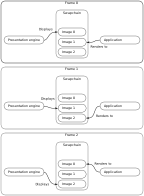
In Figure 1, we start with Frame 0, as the display engine displays Image 0 and the application renders to Image 1. At the end of Frame 0, the application presents Image 1, and eventually it gets displayed by the presentation engine.
At the beginning of Frame 1, the application acquires Image 2, and renders to it, while Image 1 is displayed by the presentation engine. After rendering, a present is issued, Image 2 will be presented next.
At the beginning of Frame 2, the application acquires Image 0, renders to it, and Image 2 is displayed by the presentation engine. A present is issued, and this goes on until the application closes.
We will spend the current and the next two chapters with creating and using the swapchain to render to a window. Much of the theoretical parts will get more concrete once you write and understand the code.
Creating and using a swapchain for a Vulkan surface requires the VK_KHR_swapchain extension. A swapchain is also created for a specific Vulkan device and a specific Vulkan surface, and valid API usage requires that it outlives both of these. Knowing this our strategy is the following:
- First we check for the availability of the swapchain extension during physical device selection.
- Then we create our swapchain for our device after device creation
Now that we have an idea what a swapchain is and what we need to create it, let's create one!
Enabling the swapchain extension
In order to create a swapchain with a Vulkan device, we must check for the physical device's support for the swapchain extension, and if supported, enable it. The plan is the following:
- During physical device selection we need to list the supported device extensions and check whether the swapchain extension is present.
- Since we are going to render to a window in every chapter of this tutorial, the support for this extension is a minimum requirement within this tutorial. For this reason we add it to the device suitability check.
- If swapchain support is present, we enable it during device creation.
Let's do it!
    //
    // Checking physical device capabilities
    //

    // ...

    // Checking device extensions
    let mut device_extension_count: u32 = 0;
    unsafe
    {
        vkEnumerateDeviceExtensionProperties(
            chosen_phys_device,
            core::ptr::null(),
            &mut device_extension_count,
            core::ptr::null_mut()
        );
    }

    let mut device_extensions = vec![VkExtensionProperties::default(); device_extension_count as usize];
    unsafe
    {
        vkEnumerateDeviceExtensionProperties(
            chosen_phys_device,
            core::ptr::null(),
            &mut device_extension_count,
            device_extensions.as_mut_ptr()
        );
    }

    let mut ext_swapchain_found = false;
    {
        let extension_name = unsafe
        {
            core::ffi::CStr::from_bytes_with_nul_unchecked(
                VK_KHR_SWAPCHAIN_EXTENSION_NAME
            )
        };

        for ext_properties in device_extensions.iter()
        {
            let current_ext_name = unsafe
            {
                core::ffi::CStr::from_ptr(
                    ext_properties.extensionName.as_ptr()
                )
            };

            if current_ext_name == extension_name
            {
                ext_swapchain_found = true;
            }
        }
    }
The vkEnumerateDeviceExtensionProperties function gets the available extensions for a physical
device. The two call scheme is the same as several times before: first we get the extension count, then we
allocate memory, and finally we get the extensions.
Then we iterate over the supported extensions, and check if the swapchain extension is among them. The
VK_KHR_SWAPCHAIN_EXTENSION_NAME constant from the bindings contains the name of the swapchain
extension.
If the extension is not supported, the device is not suitable.
    if !(ext_swapchain_found && chosen_graphics_queue_family != -1 &&
         chosen_present_queue_family != -1)
    {
        panic!("Chosen physical device is not suitable.");
    }
If the extension is supported, we must supply the swapchain extension as a device extension during device creation.
    //
    // Device creation
    //

    // ...

    let device_extensions = [VK_KHR_SWAPCHAIN_EXTENSION_NAME.as_ptr() as *const core::ffi::c_char]; // We added this
    let phys_device_features = VkPhysicalDeviceFeatures::default();

    let device_create_info = VkDeviceCreateInfo {
        sType: VK_STRUCTURE_TYPE_DEVICE_CREATE_INFO,
        pNext: core::ptr::null(),
        flags: 0x0,
        queueCreateInfoCount: queue_create_info_count,
        pQueueCreateInfos: queue_create_infos.as_ptr(),
        enabledLayerCount: 0,
        ppEnabledLayerNames: core::ptr::null(),
        enabledExtensionCount: device_extensions.len() as u32, // We added this...
        ppEnabledExtensionNames: device_extensions.as_ptr(), // ...abd this
        pEnabledFeatures: &phys_device_features
    };
Now that the extension is enabled, we can create a swapchain.
Swapchain creation
During swapchain creation we need to specify certain parameters such as image width and height, the number of swapchain images, etc. Sometimes these parameters must fall within acceptable limits. For instance the maximum width and height of the swapchain images are constrained. There is also a maximum amount of swapchain images that can be created, and so on. These constraints arranged into a struct are called surface capabilities. In order to figure out what kind of constraints our swapchain needs to adhere to, we need to query these surface capabilities.
    //
    // Swapchain creation
    //

    let mut surface_capabilities = VkSurfaceCapabilitiesKHR::default();
    unsafe
    {
        vkGetPhysicalDeviceSurfaceCapabilitiesKHR(
            chosen_phys_device,
            surface,
            &mut surface_capabilities
        )
    };
The vkGetPhysicalDeviceSurfaceCapabilitiesKHR returns the surface capabilities into a
VkSurfaceCapabilitiesKHR struct.
Then we need to choose a pixel format and a color space for the swapchain images, so let's introduce these two concepts!
Surface format selection
Every pixel of an image contains a color, and the pixel format defines what color channels (red, green, blue, ...) it contains and how this color is laid out in memory.
Let's see a few examples:
VK_FORMAT_B8G8R8A8_UNORMVK_FORMAT_B5G6R5_UNORM_PACK16VK_FORMAT_R8G8_UNORM
The first one is 4 bytes long, the first byte is the blue component, the second byte is the green component, the third one is the red component and the fourth one is the alpha component. One byte for each color component.
The second one is 16 bits (2 bytes) long, the first five bits (bits 11..15) contain the blue component, the following 6 bits (bits 5..10) contain the green component, the last 5 bits (bits 0..4) contain the red component and there is no alpha component.
The third one is 2 bytes long, the first byte is the red component, the second byte is the green component, and there is no blue or alpha component.
Now we should have an idea about what a pixel format is. Since the end result of what you see on the screen is "the monitor showing certain colors for each pixel", we need an interpretation for the pixel format.
The bits contained in the pixel are just numbers. The color space maps these numbers to actual colors displayable on your monitor.
Now let's actually select a pixel format and a color space. We can query the supported pixel formats for our surface-physical device pair.
This gives us a list of pixel formats and valid usages. Some can be used for rendering, some can be written by
a compute shader, etc. These allowed usages are presented in a bitflag. We need to check whether the bit for
our intended usage - rendering - is true. We also may have a preferred pixel format and color space.
I will choose these to be
VK_FORMAT_B8G8R8A8_UNORM and VK_COLOR_SPACE_SRGB_NONLINEAR_KHR. Now we can write our
surface format selection routine like this:
    //
    // Swapchain creation
    //

    // ...

    // Query surface formats
    let mut surface_format_count: u32 = 0;
    unsafe
    {
        vkGetPhysicalDeviceSurfaceFormatsKHR(
            chosen_phys_device,
            surface,
            &mut surface_format_count,
            core::ptr::null_mut()
        )
    };

    let mut surface_formats = vec![VkSurfaceFormatKHR::default(); surface_format_count as usize];
    unsafe
    {
        vkGetPhysicalDeviceSurfaceFormatsKHR(
            chosen_phys_device,
            surface,
            &mut surface_format_count,
            surface_formats.as_mut_ptr()
        )
    };

    let mut chosen_surface_format = None;
    for surface_format in surface_formats.iter()
    {
        let mut format_properties = VkFormatProperties::default();
        unsafe
        {
            vkGetPhysicalDeviceFormatProperties(
                chosen_phys_device,
                surface_format.format,
                &mut format_properties
            );
        }

        if format_properties.optimalTilingFeatures & VK_FORMAT_FEATURE_COLOR_ATTACHMENT_BIT as VkFormatFeatureFlags == 0
        {
            continue;
        }

        if surface_format.format == VK_FORMAT_B8G8R8A8_UNORM &&
           surface_format.colorSpace == VK_COLOR_SPACE_SRGB_NONLINEAR_KHR
        {
            chosen_surface_format = Some(*surface_format);
        }
    }

    let chosen_surface_format = chosen_surface_format.expect("Could not find suitable surface format.");
We get the surface formats using vkGetPhysicalDeviceSurfaceFormatsKHR into an array of
VkSurfaceFormatKHR structs, and iterate over every array element.
For every surface format we get the pixel format's properties using
vkGetPhysicalDeviceFormatProperties, because we want to make sure we are selecting a pixel format
that is usable for our purposes. Not every pixel format can be used for everything. Some
can be used for rendering, and some can't. Some can be written from a compute shader, and some can't.
We need one that we can render to.
The variable we are going to check is optimalTilingFeatures. Images can be laid out in memory
in at least two ways, and we only go into details about it
later.
For now let's say that optimal tiling is one of them. The image will be laid out in an implementation
defined way, and it will be good for performance. We want our swapchain images to be this way.
The field optimalTilingFeatures is a bitmask containing supported
features when the image has optimal tiling, and the VK_FORMAT_FEATURE_COLOR_ATTACHMENT_BIT
bit is set to 1 if the image can be used as a render target.
Pay attention, that VK_FORMAT_FEATURE_COLOR_ATTACHMENT_BIT is an enum constant! To avoid
signed unsigned mismatch on Windows, we explicitly cast it to VkFormatFeatureFlags.
Now that we have a pixel format, we need to choose a present mode.
Surface format selection
The present mode can be explained generically by quoting the spec: itdetermines how incoming present requests will be processed and queued internally. For now this generic description will have to suffice, but once you complete the next two chapters, you may want to read about VkPresentModeKHR in the spec on what individual present modes do. Getting into details will help with building a better mental model.
My choice for this tutorial is VK_PRESENT_MODE_FIFO_KHR, which is required to be supported by every
implementation.
    //
    // Swapchain creation
    //

    // ...

    // Query present modes
    let mut present_mode_count: u32 = 0;
    unsafe
    {
        vkGetPhysicalDeviceSurfacePresentModesKHR(
            chosen_phys_device,
            surface,
            &mut present_mode_count,
            core::ptr::null_mut()
        )
    };

    let mut present_modes = vec![VkPresentModeKHR::default(); present_mode_count as usize];
    unsafe
    {
        vkGetPhysicalDeviceSurfacePresentModesKHR(
            chosen_phys_device,
            surface,
            &mut present_mode_count,
            present_modes.as_mut_ptr()
        )
    };

    let preferred_present_mode = VK_PRESENT_MODE_FIFO_KHR;

    let mut chosen_present_mode = VK_PRESENT_MODE_FIFO_KHR;
    for present_mode in present_modes.iter()
    {
        if *present_mode == preferred_present_mode
        {
            chosen_present_mode = *present_mode;
        }
    }
Image sharing mode selection
When we created the surface and modified our device suitability check routine, we had to look for a Queue from a family that can be used to submit present requests. It's obvious from the code that this may or may not be the same queue as the graphics queue, which we will use for rendering.
This involves using swapchain images from two different queue families: one for rendering to them and one for presentation. There is an advanced concept called queue family ownership that explains the ways of sharing images between queue families. To sum it all up, if the present queue family is different from the graphics queue family, then we either need to transfer the images between them, or set the sharing mode to be concurrent.
For the sake of simplicity we will do the latter, but be prepared that when your application gets more serious, you should research the topic and adjust if necessary.
    //
    // Swapchain creation
    //

    // ...

    // Setting concurrent or exclusive sharing mode based on whether we are multiqueue.
    let empty_array = [];
    let queue_family_array = [
        chosen_graphics_queue_family,
        chosen_present_queue_family
    ];

    let image_sharing_mode;
    let queue_families;
    if chosen_graphics_queue_family == chosen_present_queue_family
    {
        image_sharing_mode = VK_SHARING_MODE_EXCLUSIVE;
        queue_families = &empty_array[..];
    }
    else
    {
        image_sharing_mode = VK_SHARING_MODE_CONCURRENT;
        queue_families = &queue_family_array[..];
    }
There. In the single queue case, we use exclusive sharing mode, and in the multi queue case we use the concurrent sharing mode and list the graphics and present queue families.
Swapchain creation
Now that we have collected the surface capabilities, the pixel format, the present mode and the sharing mode, it's time to create the swapchain. The create info is filled the following way:
    //
    // Swapchain creation
    //

    // ...

    let swapchain_image_count = surface_capabilities.minImageCount;

    let min_width = surface_capabilities.minImageExtent.width;
    let max_width = surface_capabilities.maxImageExtent.width;

    let min_height = surface_capabilities.minImageExtent.height;
    let max_height = surface_capabilities.maxImageExtent.height;

    let swapchain_create_info = VkSwapchainCreateInfoKHR {
        sType: VK_STRUCTURE_TYPE_SWAPCHAIN_CREATE_INFO_KHR,
        flags: 0x0,
        pNext: core::ptr::null(),
        surface: surface,
        minImageCount: swapchain_image_count,
        imageFormat: chosen_surface_format.format,
        imageColorSpace: chosen_surface_format.colorSpace,
        imageExtent: VkExtent2D {
            width: min_width.max(max_width.min(width)),
            height: min_height.max(max_height.min(height))
        },
        imageArrayLayers: 1,
        imageUsage: VK_IMAGE_USAGE_COLOR_ATTACHMENT_BIT as VkImageUsageFlags,
        imageSharingMode: image_sharing_mode,
        queueFamilyIndexCount: queue_families.len() as u32,
        pQueueFamilyIndices: queue_families.as_ptr(),
        preTransform: surface_capabilities.currentTransform,
        compositeAlpha: VK_COMPOSITE_ALPHA_OPAQUE_BIT_KHR,
        presentMode: chosen_present_mode,
        clipped: VK_TRUE,
        oldSwapchain: core::ptr::null_mut()
    };

    println!("Creating swapchain.");
    let mut swapchain = core::ptr::null_mut();
    let result = unsafe
    {
        vkCreateSwapchainKHR(
            device,
            &swapchain_create_info,
            core::ptr::null_mut(),
            &mut swapchain
        )
    };

    if result != VK_SUCCESS
    {
        panic!("Failed to create swapchain. Error: {:?}.", result);
    }
The logic behind filling the VkSwapchainCreateInfoKHR is mostly self explanatory. Previously
we searched for a format and a color space and now we assign it to imageFormat and
imageColorSpace. I'll only describe the non trivial ones in detail.
Let's talk about swapchain width and height calculation, which will be stored in imageExtent!
VkSurfaceCapabilitiesKHR has a currentExtent field, so you might rightfully ask,
why I do not use it. This field can have a special value (0xFFFFFFFF, 0xFFFFFFFF) on certain platforms, such
as Wayland on Linux, and this value is unusable directly.
According to the spec
currentExtent is the current width and height of the surface, or the special value (0xFFFFFFFF, 0xFFFFFFFF)
indicating that the surface size will be determined by the extent of a swapchain targeting the surface.
Since currentExtent caused trouble for me, I used the width and height
variables from window creation. It contains the initial window size I set through SDL2 at the beginning.
Since valid API usage expects imageExtent to fall within minImageExtent and
maxImageExtent, I constrain their values using the min and max built-in
functions.
An important field is imageUsage, where we signal that we will use the swapchain images for
rendering. Pay attention that VK_IMAGE_USAGE_COLOR_ATTACHMENT_BIT is an enum constant, casting
is required because of signed-unsigned mismatch.
There are a few fields that I will not talk about, but you can read about them if you want.
The spec would be an excellent place to start.
There is imageArrayLayers, for an ordinary windowed app the value 1 will do.
Then we have compositeAlpha, which will be VK_COMPOSITE_ALPHA_OPAQUE_BIT_KHR,
and clipped, which will be VK_TRUE.
The field oldSwapchain will be important
later, but for now we set it to
core::ptr::null_mut().
Now that we've created our swapchain it's also time to clean it up after we break out of the game loop. The swapchain needs to be destroyed before the device is destroyed.
    //
    // Cleanup
    //

    println!("Deleting swapchain.");
    unsafe
    {
        vkDestroySwapchainKHR(
            device,
            swapchain,
            core::ptr::null_mut()
        );
    }

    // Device destruction...
Getting swapchain images
Ok. We have a swapchain. How are we going to get the images we can later render to? This is where
vkGetSwapchainImagesKHR comes in, which takes the device and the swapchain, and returns
the swapchain images to draw to.
    //
    // Getting swapchain images
    //

    let mut swapchain_img_count: u32 = 0;
    let result = unsafe
    {
        vkGetSwapchainImagesKHR(
            device,
            swapchain,
            &mut swapchain_img_count,
            core::ptr::null_mut()
        )
    };

    if result != VK_SUCCESS
    {
        panic!("Failed to get swapchain images. Error: {:?}.", result);
    }

    let mut swapchain_imgs = vec![core::ptr::null_mut(); swapchain_img_count as usize];
    let result = unsafe
    {
        vkGetSwapchainImagesKHR(
            device,
            swapchain,
            &mut swapchain_img_count,
            swapchain_imgs.as_mut_ptr()
        )
    };

    if result != VK_SUCCESS
    {
        panic!("Failed to get swapchain images. Error: {:?}.", result);
    }
We use vkGetSwapchainImagesKHR twice the standard way to get the image count, allocate memory,
and then get the swapchain images. There isn't much in the code to talk about, so...
Yay! We have images! We do not yet have rendering code, but it's not a huge leap to imagine we will be able to render to these, so at least we see the light at the end of the tunnel.
Wrapping up
This is where this chapter ends. We created a window, created a surface to represent the window in Vulkan, created a swapchain to pair Vulkan images with the surface, and went through lots of details along the way.
In the next chapter we will color these images with a single color, and familiarize ourselves with lots of rendering related concepts.
The sample code for this tutorial can be found here.
The tutorial continues here.